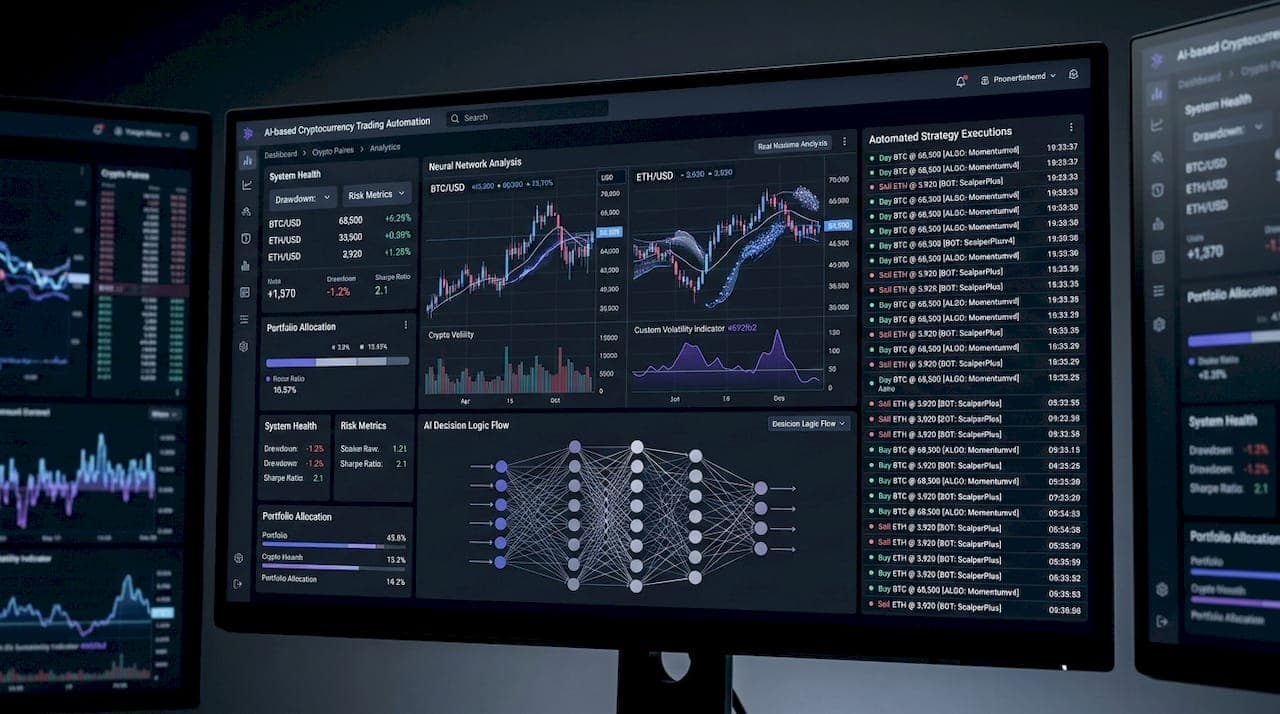
Developers: 3 Pine Script Alerts for Webhook Automation

Three functions handle alerts in Pine Script, and each one serves a different job. Use alertcondition() when you’re building an indicator and want traders to pick from a menu of triggers. Use alert() when you need dynamic, per-execution messages tied to conditional logic. Use strategy order-fill events with alert_message when the goal is reliable automated execution through a webhook. If you’re building toward automation, the immediate next step is wiring an alert_message string into your strategy’s order calls, not adding more alertcondition() triggers.
TL;DR:
- Alerts initiated in Pine Script are only triggers; actual execution depends on how the user configures and activates them on TradingView’s server side.
- Using
alertcondition()creates selectable triggers for indicators with static messages, but messages cannot include live series data.- The
alert()function allows dynamic, live-updating messages but requires careful wrapping in conditionals to prevent alert flooding.- Strategy order-fill events automatically generate alerts with customizable
alert_messagestrings, ideal for automated trading via webhooks.- Building reliable webhook payloads involves careful construction of JSON strings with placeholders, testing them before deployment to avoid integration errors.
How Pine Script Alerts Actually Work on TradingView’s Servers
Alerts don’t run on your machine. Once you create one, TradingView executes it on its own servers around the clock, which is why an alert keeps firing even after you close your browser tab.
Your script only defines the possibility of an alert. Writing alertcondition() or alert() into your code creates a trigger option, but nothing happens until you open the Create Alert dialog and activate it. That’s the split worth understanding early: code defines what can trigger, the UI decides what actually runs, and TradingView’s servers execute it.
Indicators (studies) and strategies behave differently here. An indicator only exposes whatever alertcondition() calls or alert() logic you’ve written. A strategy automatically exposes order fill events too, without any extra code, because TradingView already tracks every simulated entry and exit.
Inside the Create Alert dialog, you control:
- Condition: which trigger or order-fill event fires the alert
- Frequency: once per bar, once per bar close, or every time the condition is true
- Expiration: a fixed date or open-ended
- Notification method: webhook URL, email, push notification, or pop-up
alertcondition(): Building Selectable Triggers for Indicators
alertcondition() is the right tool when you’re writing an indicator and want users to choose from multiple named conditions in the Create Alert dropdown, rather than getting one fixed alert baked into the script.
The signature is straightforward:
condition: a boolean series that determines when the trigger fires.title: the label shown in the Create Alert condition list.message: the text sent when the alert fires.
The catch is that message must be a const string. It can include placeholders like {{close}} or {{ticker}}, which TradingView fills in at trigger time, but it cannot reference a calculated series value directly. You can’t write message = "RSI is " + str.tostring(rsi) and hand that to alertcondition(). That restriction exists because TradingView needs to know the message at compile time, not at runtime.
The other hard rule: alertcondition() must sit in the script’s global scope. Put it inside an if block or a function, and the compiler either rejects it or silently fails to expose it as a selectable trigger in the UI. Every call you make at global scope becomes its own entry in the dropdown, which is how one indicator can offer five or six different alert conditions for a user to pick from.
Pro Tip: If you want a single indicator to alert on both a bullish and bearish crossover, write two separate alertcondition() calls with distinct titles instead of trying to cram both outcomes into one dynamic message. It’s the only way to keep both options selectable in the Create Alert dialog.
alert(): Dynamic Messages and Frequency Control
alert() solves the problem alertcondition() can’t: it accepts a series string, so your message can include live calculated values, not just placeholders resolved at trigger time.
That flexibility comes with a tradeoff. alert() has no condition argument, so you’re responsible for wrapping it in your own conditional logic. Call it unconditionally on every bar and you’ll flood your notification channel with duplicate alerts within minutes.
The function’s second argument, freq, controls how often it can fire:
alert.freq_once_per_bar: fires once per bar, even if the condition stays true across multiple ticksalert.freq_once_per_bar_close: fires only when the bar closes, which avoids reacting to intrabar noisealert.freq_all: fires on every qualifying tick, useful for high-frequency setups but risky for spam
Frequency choice interacts with calc_on_every_tick and bar state. If your script runs on bar close only, alert.freq_all behaves close to alert.freq_once_per_bar_close anyway, since there’s nothing to evaluate between closes. But if calc_on_every_tick = true, the same setting can fire repeatedly during a single realtime bar as price ticks in and out of your condition, which is a common source of alert fatigue.
Pro Tip: Wrap alert() in the same if structure you use to plot your signal, not a separate condition. It keeps the visual signal and the alert perfectly in sync, so what you see on the chart is exactly what triggered the notification.
Strategy Order-Fill Alerts and the alert_message Parameter
Strategies get a feature indicators don’t: automatic order-fill alerts. You don’t need to write a single alertcondition() or alert() call to get notified when a simulated order fills. TradingView’s broker emulator generates that event on its own, tied precisely to when the fill happens in simulated time.
What you do need to customize is the message content, and that’s where alert_message comes in.
- Add
alert_messageas a parameter tostrategy.entry(),strategy.close(),strategy.order(), orstrategy.exit(), passing a series string with whatever payload you want sent for that specific order. - In the Create Alert dialog, select the “order fills” condition and insert the placeholder
{{strategy.order.alert_message}}into the message box. - TradingView substitutes your custom string at fire time, so each order type (long entry, stop exit, scaled reduction) can carry its own distinct payload without extra Pine logic beyond setting the parameter.
This is the pattern to reach for whenever the goal is execution rather than notification. It ties the alert’s timing to the actual simulated fill instead of a separate condition check, which matters if you’re forwarding these events to an automated trading strategy setup. It also sidesteps redundant alertcondition() calls inside a strategy script, since the order-fill event already exists.
Placeholders and Building Webhook-Ready JSON Payloads
TradingView’s alert placeholders get replaced with live values the moment an alert fires, and they’re the backbone of any webhook integration. The most commonly used ones include {{ticker}}, {{close}}, {{interval}}, {{time}}, {{strategy.order.action}}, and {{plot_0}} for referencing a script’s first plot value. TradingView’s support documentation lists over a dozen placeholder and operator options available in the alert configuration screen.
Building a valid JSON payload in Pine Script takes a bit of discipline, since you’re constructing a string, not a structured object:
- Concatenate the JSON manually or use
str.format()and otherstr.*()helpers to assemble key-value pairs cleanly. - Wrap every string value in escaped double quotes, and leave numeric values unquoted so downstream parsers don’t choke on type mismatches.
- Keep numeric formatting consistent. Use
str.tostring()with explicit decimal precision rather than relying on Pine’s default formatting, which can vary by instrument. - Test the exact string your script would send against a temporary endpoint like webhook.site before pointing it at a production system.
That last step catches most integration bugs before they cost anything. A malformed payload that silently fails in production is worse than one that fails loudly in testing, and webhook testing against a disposable endpoint is the cheapest insurance available.
Webhooks are the preferred integration pattern here because they’re synchronous, structured, and push-based. Email and push notifications work for human review, but they’re not built for a machine to parse and act on within seconds. A webhook, by contrast, lands as a full HTTP payload with the exact data your execution logic needs.
Copy-Ready Pine Script Alert Examples
A minimal indicator using alertcondition() might look like this:
//@version=5
indicator("RSI Alert Example", overlay=false)
rsiValue = ta.rsi(close, 14)
overbought = ta.crossover(rsiValue, 70)
alertcondition(overbought, title="RSI Overbought", message="{{ticker}} RSI crossed above 70 at {{close}}")
This exposes one selectable trigger, “RSI Overbought,” in the Create Alert dropdown, with a static message enriched by placeholders.
For dynamic messages, alert() inside conditional logic looks like this:
//@version=5
indicator("Dynamic Alert Example", overlay=true)
fastMA = ta.sma(close, 9)
slowMA = ta.sma(close, 21)
if ta.crossover(fastMA, slowMA)
    alert("Bullish cross on " + syminfo.ticker + " at price " + str.tostring(close), alert.freq_once_per_bar_close)
Note the freq_once_per_bar_close choice: it prevents the alert from firing repeatedly while the bar is still forming in realtime.
A strategy passing a webhook-ready payload through alert_message might read:
//@version=5
strategy("Webhook Strategy Example", overlay=true)
longCondition = ta.crossover(ta.sma(close, 9), ta.sma(close, 21))
if longCondition
    payload = '{"action":"buy","ticker":"' + syminfo.ticker + '","price":' + str.tostring(close) + '}'
    strategy.entry("Long", strategy.long, alert_message=payload)
In the Create Alert dialog, selecting the strategy’s order-fill condition and typing {{strategy.order.alert_message}} into the message field forwards that exact JSON string. One detail worth remembering: strategies calculate on bar close by default. If you need the alert to reflect realtime price action rather than the confirmed close, you’ll need calc_on_every_tick = true in your strategy() declaration, understanding that this changes when and how often the order-fill logic evaluates.
Why Pine Script Alerts Don’t Fire (and How to Fix It)
Most “my alert isn’t working” problems trace back to one of a handful of causes, and working through them in order saves time.
- Confirm the script compiled and is applied to the chart. An alert can’t reference a trigger from a script that isn’t currently on your chart.
- Open Create Alert and check that your trigger actually appears in the condition dropdown. If
alertcondition()was declared inside anifblock or a function, it won’t show up at all. - Verify you selected the right condition and frequency. A frequency set to “Once Per Bar” won’t refire on the same bar even if your logic technically re-triggers.
- Check the expiration date. Alerts silently stop working once they expire, and it’s an easy detail to overlook.
- Confirm your plan’s alert quota isn’t maxed out. Free and lower-tier plans cap the number of simultaneous active alerts.
A subtler trap: changing an indicator’s input parameters after creating an alert doesn’t always update the alert’s underlying logic. TradingView’s own support documentation warns that an existing alert can keep firing on the old settings even after you’ve adjusted inputs on the chart, so recreating the alert after any parameter change is the safer habit.
On the webhook side, test against a disposable endpoint first and inspect the raw HTTP request TradingView sends. Confirm the JSON is well-formed, the headers look right, and your receiving server returns a 200 status. A payload that looks fine in the alert message box can still break in transit if a quote mark or bracket got mismatched.
Pro Tip: If an alert fires in backtesting but never in realtime, check whether your logic depends on a value that only finalizes at bar close. Repainting-style conditions can look reliable on historical bars and then never trigger the way you expect once the market is live.
Managing Multiple Alerts Without Losing Control
Reliability at scale is less about clever Pine code and more about discipline in how you name, structure, and monitor alerts once you have more than one or two running.
- Prefer strategy order-fill alerts over standalone
alertcondition()triggers for anything execution-critical, since fill events are tied to the actual simulated transaction rather than a separate check that can drift out of sync. - Include order IDs, timestamps, and instrument identifiers in every payload, so your receiving system can distinguish and log each event independently.
- Build idempotency checks and maximum order size limits into the execution side, not the alert side, since duplicate webhook deliveries can happen on network retries.
- Design around your TradingView plan’s alert quota deliberately, treating it as a hard constraint rather than something to discover after hitting the limit.
- Secure the webhook endpoint itself with a secret token in the payload, IP allow-listing where supported, and HTTPS only, never a plain HTTP endpoint for anything connected to live capital.
What Production Webhook Integrations Actually Need
Building alerts that trigger reliably in TradingView is only half the job. The harder half is what happens after the webhook lands somewhere.
In practice, a production consumer expects consistent JSON structure every time, not a payload that varies depending on which condition fired. It also expects some form of authentication on the request and a field it can use as an order reference, since without one, matching a fill back to the alert that caused it becomes guesswork.
Darkbot’s approach to this leans on a few operational habits worth adopting regardless of the platform: run new payload formats in a dry-run mode before connecting them to live orders, apply rate limiting so a burst of duplicate alerts doesn’t cascade into duplicate trades, and run basic sanity checks on order size and instrument before anything executes. The most common real-world failure isn’t a bad strategy. It’s a malformed payload, a missing field, or a retry that fires the same order twice, and all three are solvable with structure, not more indicators.
— Grisha
Darkbot: Executing TradingView Webhook Alerts With Structured Controls
Once your Pine Script alerts are firing correctly, the question becomes what receives them; tools like the TradingView Trade Copier can automate follower accounts by copying TradingView alerts directly. Darkbot is built as a webhook consumer and execution platform: it receives the TradingView alert payload, maps its fields to an order on your connected exchange, and applies risk controls before anything executes.
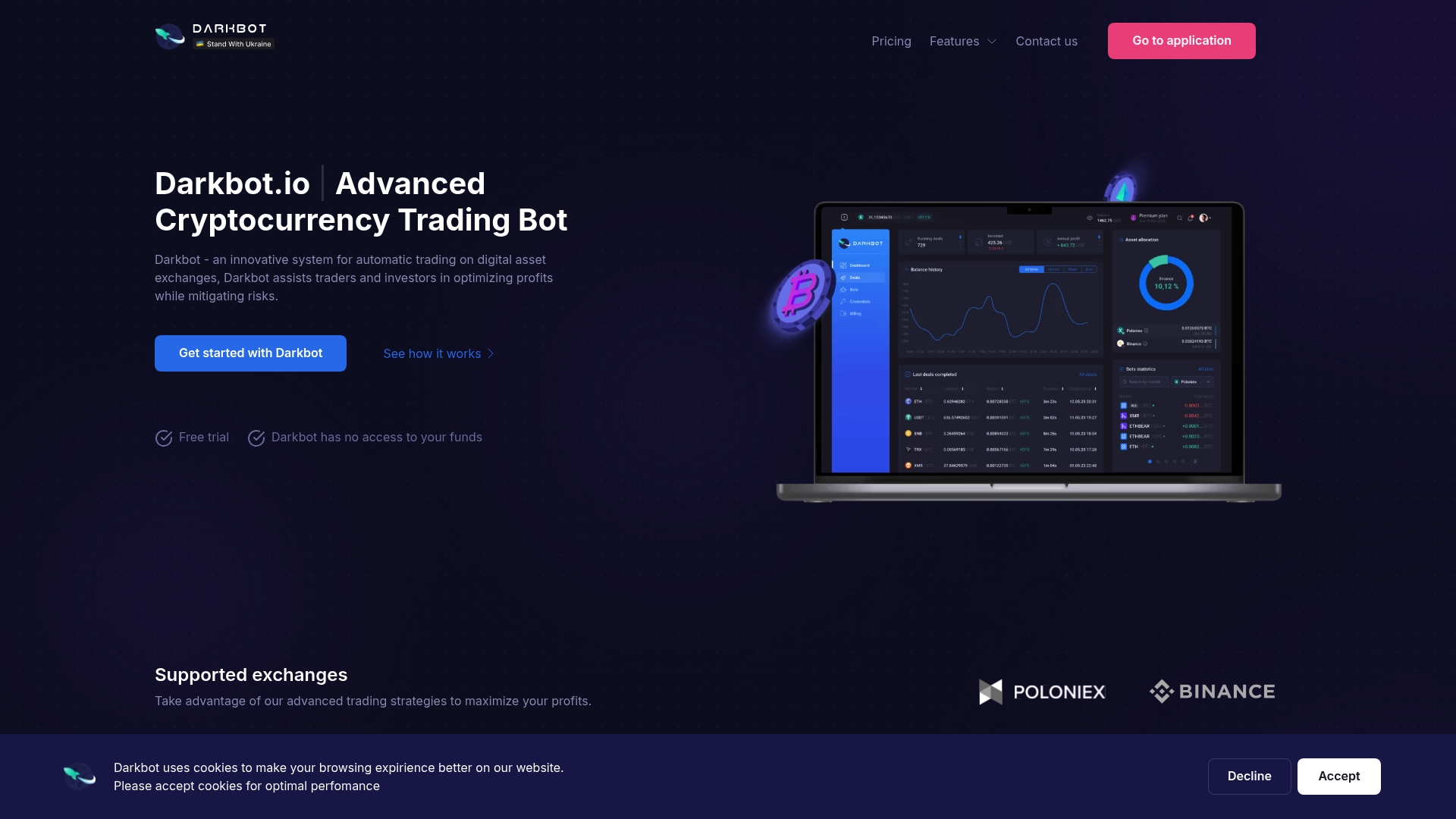
That’s a meaningfully different job than parsing JSON yourself and writing exchange-specific order logic from scratch. Darkbot handles the mapping between your alert_message fields and exchange order parameters, and layers in position sizing rules and risk checks so a malformed or duplicate alert doesn’t turn into an unintended trade. It’s worth being direct about what this is: a systematic execution platform, not a signal provider, and not a system that predicts price movement. It applies the same rule-driven logic to every alert it receives, consistently, whether the market is calm or volatile.
If you’ve already got alerts structured with alert_message and a webhook URL ready, visiting the Darkbot landing page is the practical next step to review integration options, including the free tier, before connecting it to a live account.
FAQ
How do I get TradingView alerts for free?
TradingView’s free plan includes a limited number of active alerts at no cost; you create them the same way as on paid plans, through the Create Alert dialog on any chart with a compiled script or built-in condition.
Does TradingView offer alerts?
Yes. TradingView runs alerts on its own servers using triggers defined in Pine Script (alertcondition(), alert()) or automatically for strategy order fills, and delivers notifications by webhook, email, push, or pop-up.
How do I see my alerts on TradingView?
Open the Alerts panel from the sidebar of any chart to view every active alert, its condition, status, and history of past triggers.
How many alerts can you set on TradingView for free?
The free plan caps the number of simultaneously active alerts at a low limit, and that cap rises with paid subscription tiers; check your current plan’s quota in TradingView’s own pricing page since limits vary by tier.
Should I use alertcondition() or alert() for automated execution?
Neither is ideal for execution on its own. Strategy order-fill events paired with the alert_message parameter give the most reliable timing for automated trading, since they fire exactly when a simulated order fills rather than on a separately evaluated condition.

Start trading on Darkbot with ease
Come and explore our crypto trading platform by connecting your free account!
Free plan available • No credit card required